Klavia
Import Music on Windows
Import a MusicXML score directly or turn a PDF into playable sheet music in Klavia for Windows. These genuine screenshots show the English app maximized; no desktop or personal folders are shown.
The example is Carl Czerny’s 50 Melodische Übungsstücke, No. 4, using Czerny-No-4.musicxml and Czerny-No-4.pdf, the same files as the Android guide.
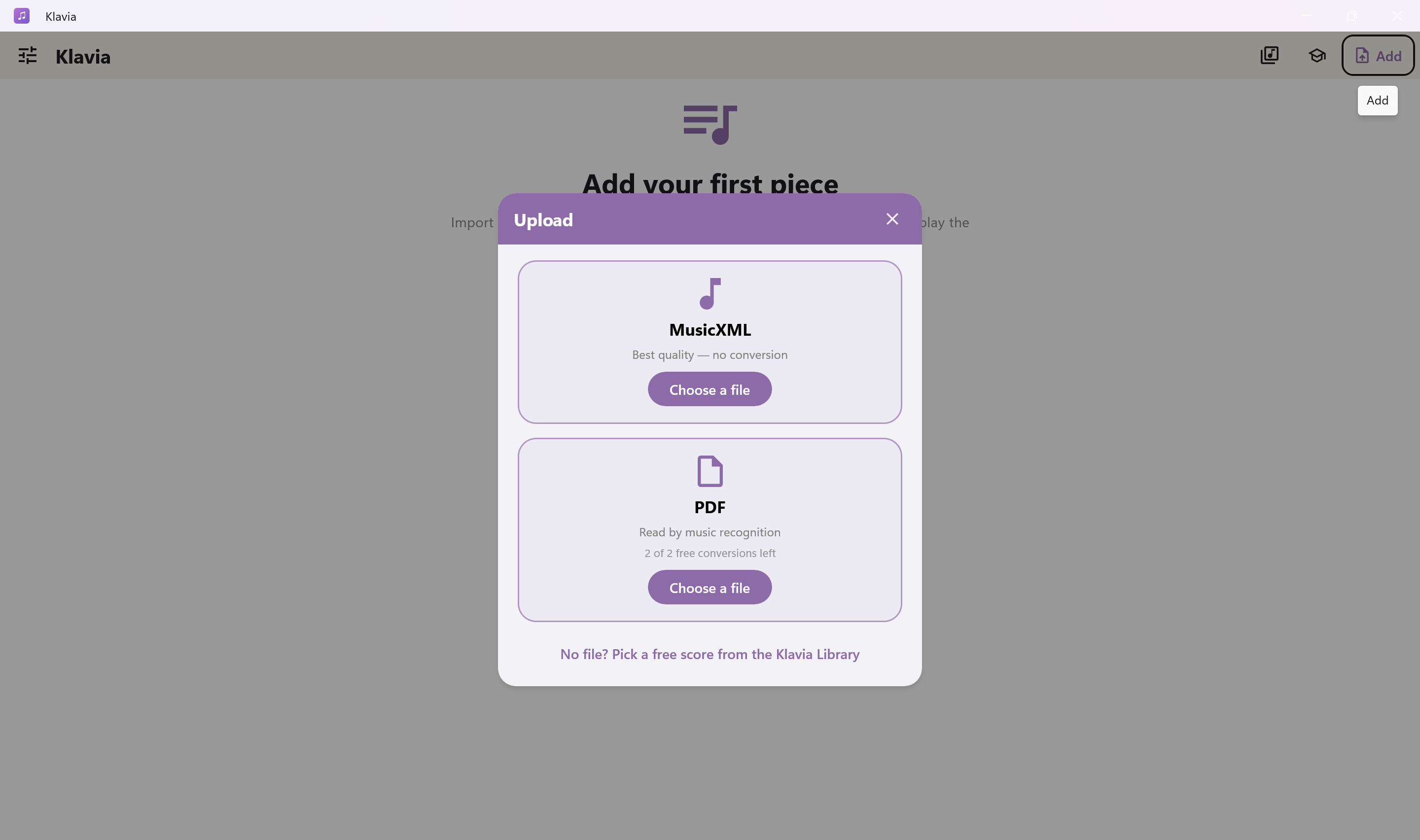
1. Open the import chooser
Click Add on the home screen. If a piece is already open, use the import icon at the top right. The Upload window offers MusicXML and PDF.
2. Import MusicXML
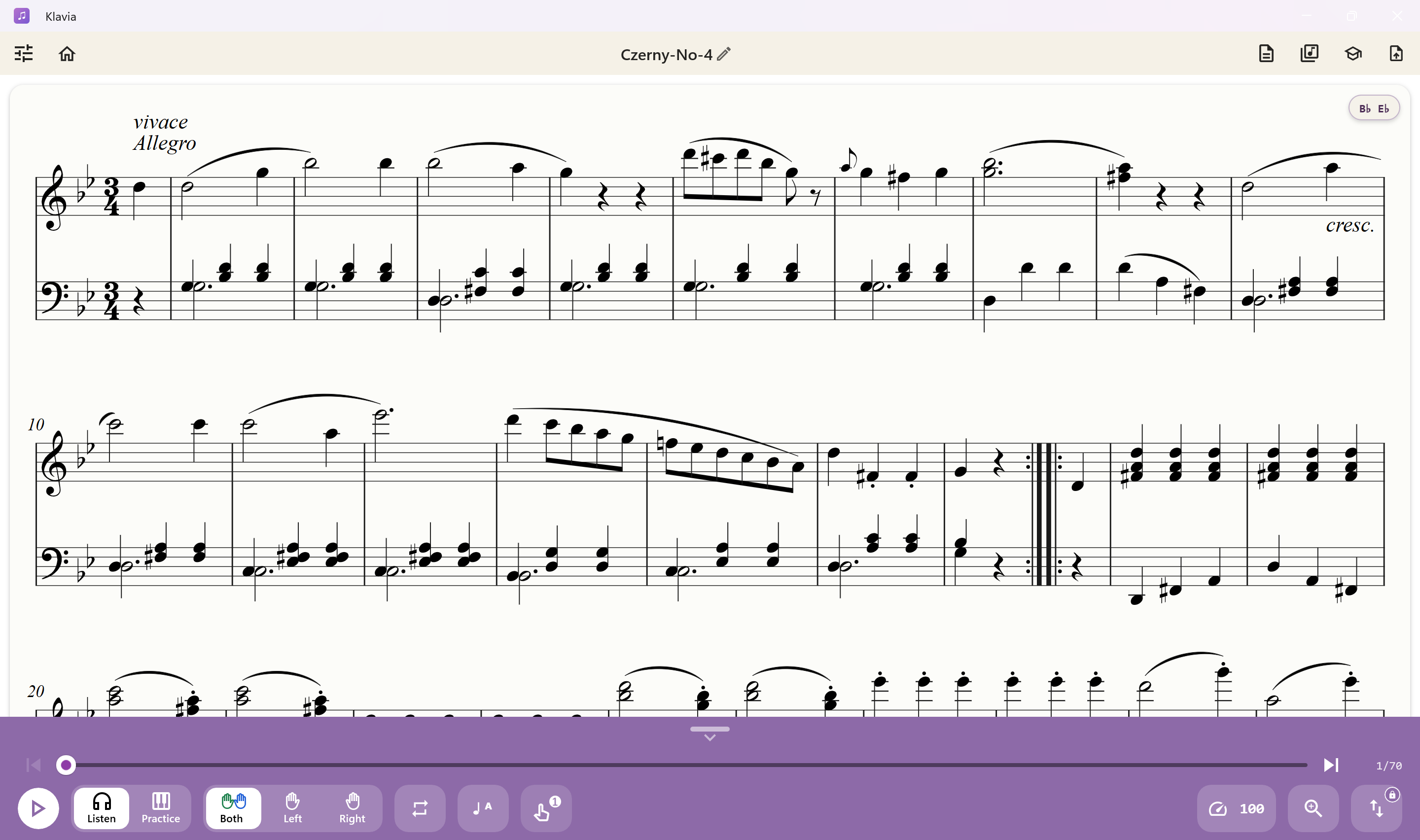
Choose MusicXML → Choose a file. In the Windows file picker, select your downloaded .musicxml, .xml or compressed .mxl file, then open it. Arbitrary XML is not necessarily MusicXML. Klavia reads the score directly without PDF recognition and saves it to your library.
3. Import a PDF
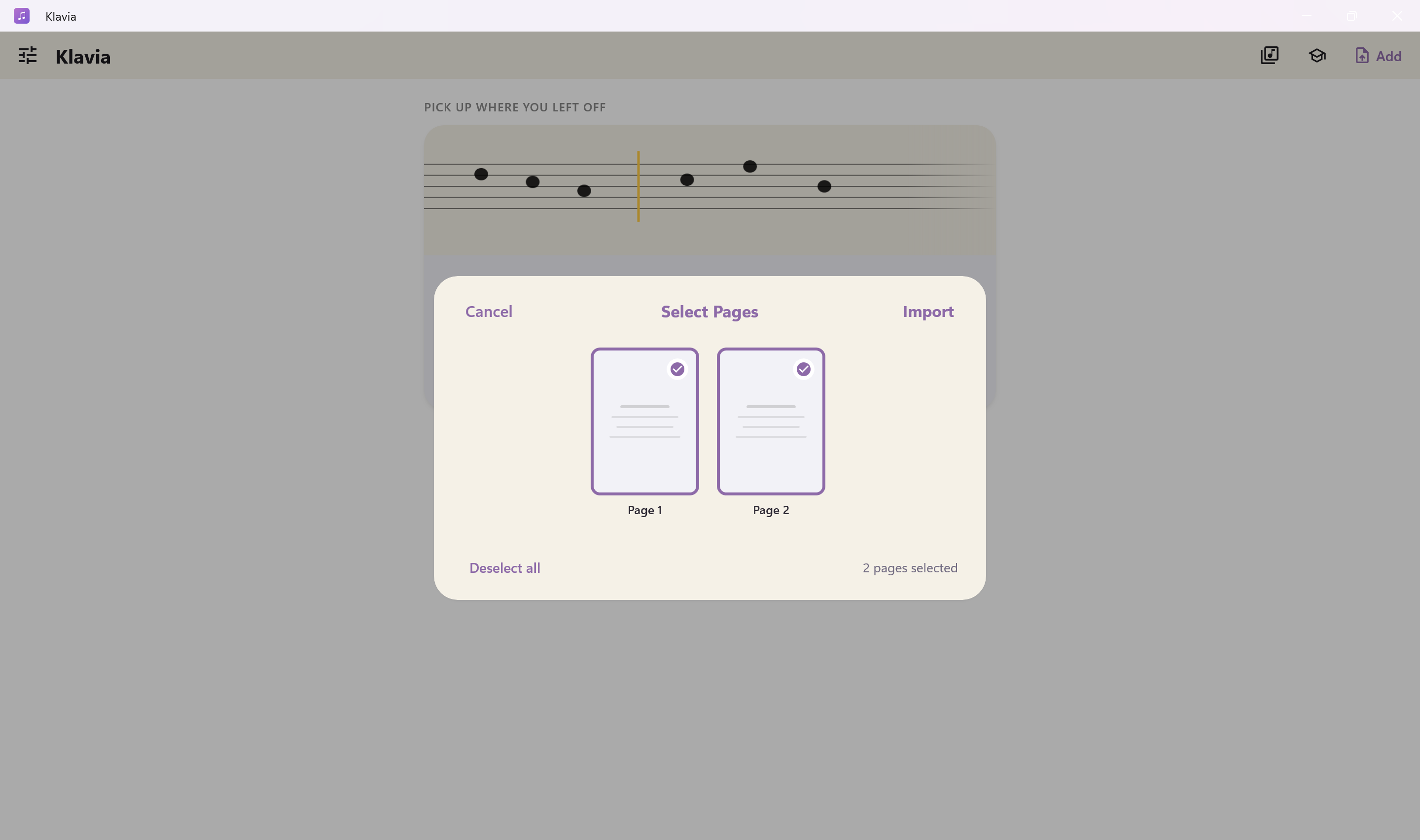
Choose PDF → Choose a file and open your PDF in the Windows picker. For a multi-page document, keep the pages you want selected, then click Import. A single-page PDF starts conversion directly. Stay connected to the internet while Klavia recognizes the notation.
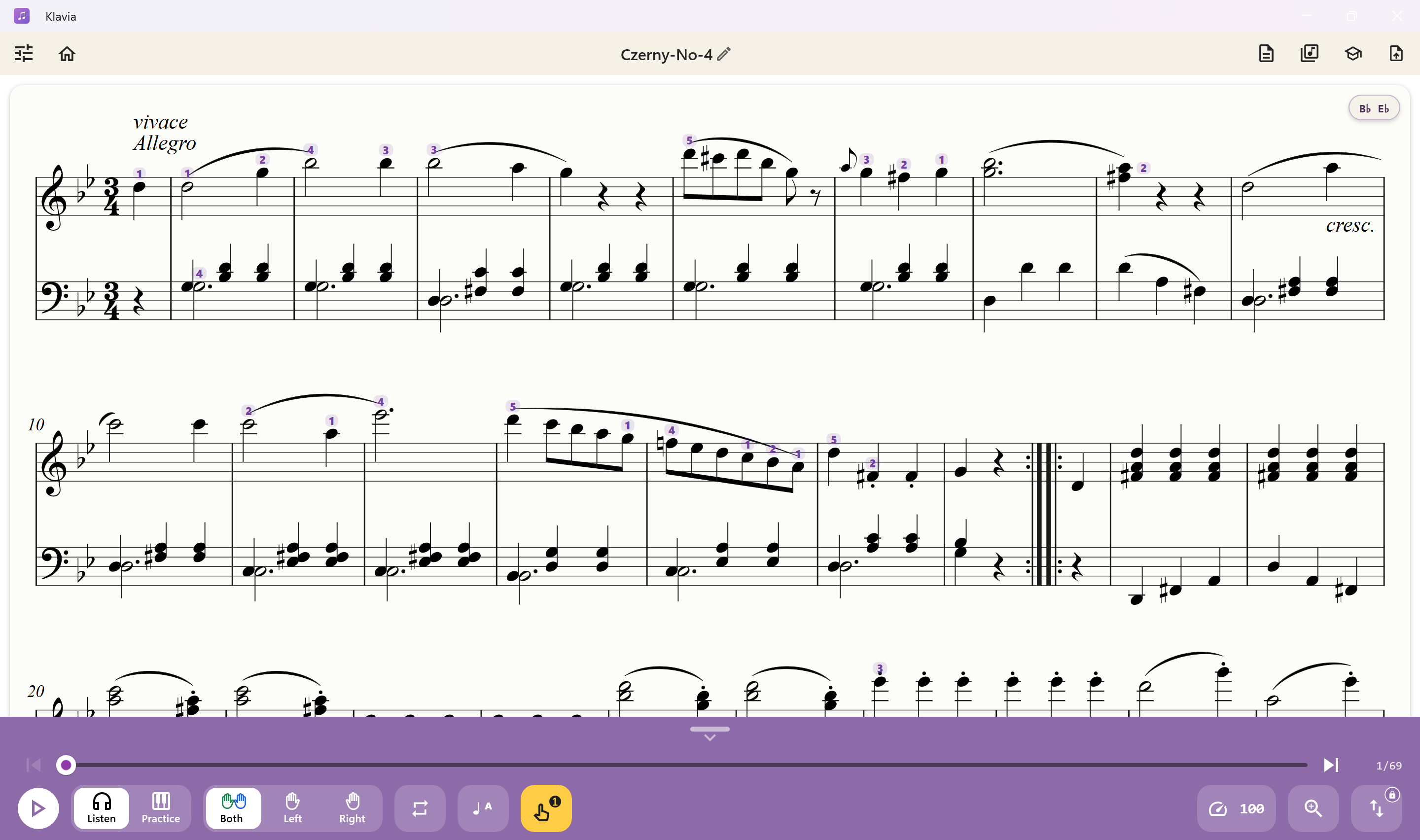
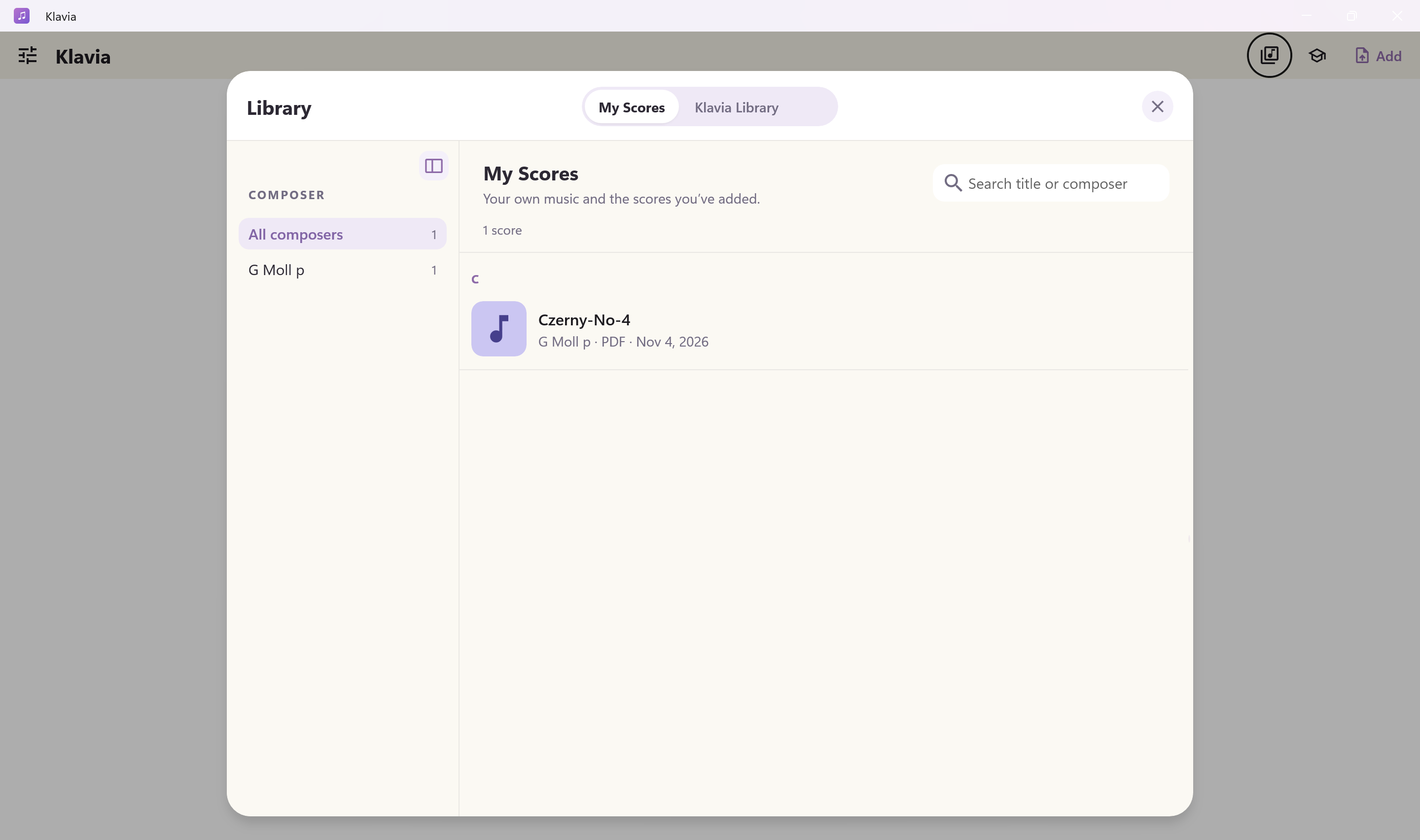
4. Find your score
Open the library icon in the toolbar and select My Scores. Find your piece by title; the search field can narrow the list. Klavia Library contains the catalogue, not your imported files.